 Skip to content

Welcome to the complete guide of EFFON Bluetooth Ring Scanner T3. This document is designed to help you understand the features, setup, and usage of the T3 scanner to ensure optimal performance in your operations.
Before Pairing: Match the Bluetooth Mode to Your App
This guide covers common T3 workflows. Configuration barcodes, default settings and menu names can vary with firmware. Use the manual supplied for your scanner; keep a record of the current settings before changing communication mode or restoring defaults.
- HID: scan into the focused text field like a keyboard. Test in a basic text application before testing the warehouse app.
- SPP: use a compatible Android application that opens the required serial communication channel. Bluetooth pairing alone does not establish app integration.
- BLE: use an application that supports the scanner’s BLE protocol. Confirm SDK and protocol requirements for the selected configuration.
- iPhone and iPad: use a supported HID or BLE workflow. Do not assume that an Android SPP setup also works on iOS.
See the T3 product page for model information and discuss application integration with EFFON before deployment.
|| Product Overview
Key Feature
- Ultra-Lightweight: At just 26 grams, it’s designed for comfort during long shifts.
- Touch Scan Technology: Touch controls support hands-free scanning workflows. Follow the model instructions when configuring the active touch buttons.
- Adjustability & Comfort: Features an adjustable soft rubber ring to fit various finger sizes.
- Robust & Reliable: IP65 rated for dust and water resistance, with a sturdy design that withstands up to 1.2M drops.
- Long Battery Life: Runtime depends on scan frequency, communication mode, feedback settings and the working environment. Confirm the selected configuration and test a representative shift.
- User-Friendly: Equipped with audio, vibration, and LED alerts for use in noisy environments.
- Cold Storage Capable: Functions effectively in temperatures as low as -20 degrees Celsius.
|| Package Contents
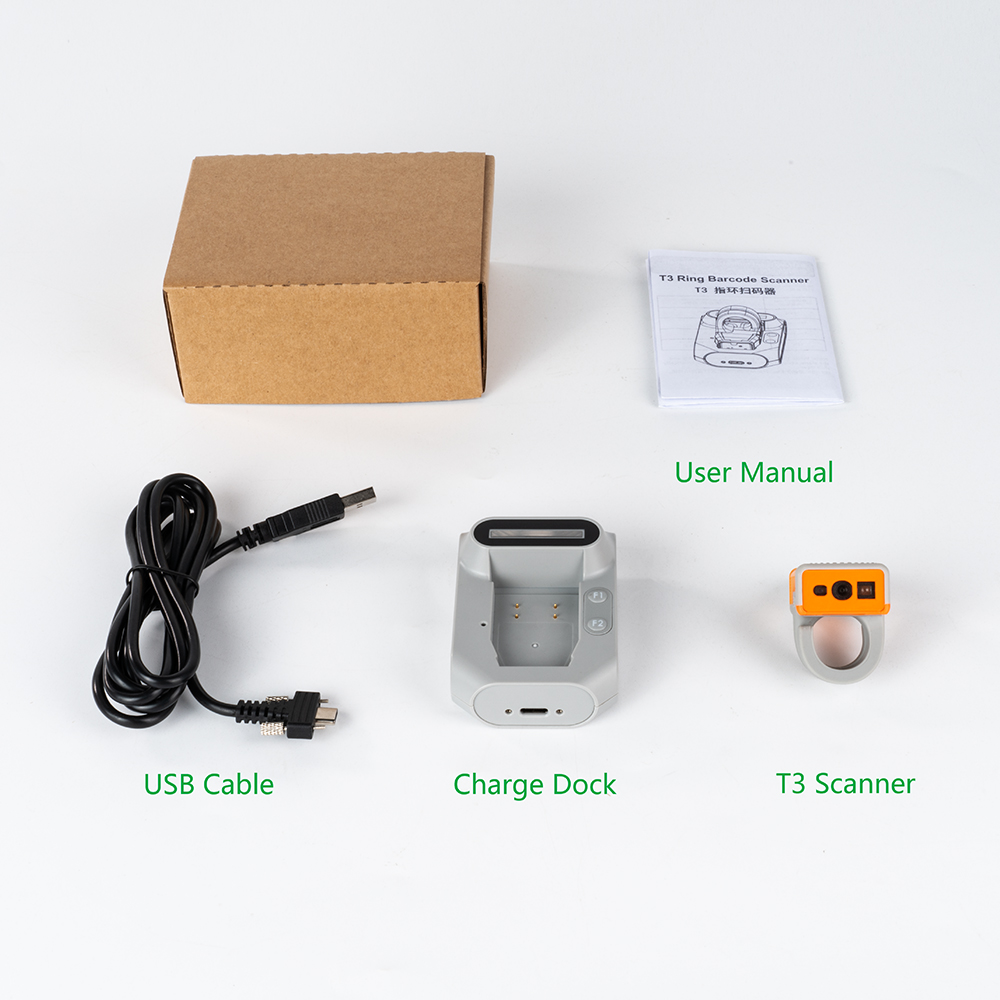
- 1x T3 Ring Scanner
- 1x T3 Standard Charge Station
- 1x Quick Guide Manual
|| Getting Started
1. Charging the Device
It can be charged the T3 Ring Scanner via T3-BC standard charging station;
Power Adaptor: Power supply voltage 5V, fast charger adaptor is not recommended
2. 10-Slot Charging Dock
Using the DC connecting rod, you can combine multiple charging stations into a single unit, such as 3 or 5 stations.
One Power Supply can support up to 10 charging stations at the same time;
The charging time is 2.5 hours.
3. How to disassemble the charging cable
You can remove the charging cable from the back of the T3 charging station so that you can slot the T3 charging station together for charging.
4. How to Turn on the T3 Bluetooth Ring Scanner?
Press and hold the touch buttons on both sides simultaneously for 3 seconds to power on.
5. How to Turn Off the T3 Bluetooth Ring Scanner?
Turn Off: By default, it will shut down after 5 minutes of sleep.You can scan the setting code to
turn off, or set the required sleep time
|| Pairing with a Device
1. How to Connect the T3 Ring Scanner to an Android Device
There are three ways to enable the T3 Ring Scanner to connect with Android Devices
Method 1: Scan the Bluetooth Pairing Barcodes (HID Mode)
This operation video is the same as pairing with an iPhone in HID mode.
Method2: Using EFFON ”Scan to go“APP (HID mode)
This operation requires the “Scan to Go” App developed by EFFON, please contact the sales to get the app.apk
Suitable operating system: Android Devices (Android Phone, Android Tablet and Android Computer)
Method 3: Scanner MAC address(SPP mode)
2. How T3 ring barcode scanner connect with IOS Device (HID mode)
First, scan the “Bluetooth HID mode” Setting code.
Next, scan the ” Save” setting barcode
After that, the T3 ring scanner will power off, please turn on the T3 scanner, enable the mobile phone Bluetooth setting, find the T3 ring scanner’s Bluetooth name, click, and connect;
The T3 ring scanner LED light will be off after successfully connected
3. How T3 ring scanner connect with the laptop?
There are two connection options for compatible Windows computers. Confirm which option is supported by your scanner and charging station.
Method 1: Bluetooth(HID Mode): You need to scan the HID Mode pairing barcodes
Method 2: With the T3 Bluetooth Charge: Just scan the pairing barcode on the T3 Bluetooth charger to easily connect to the computer
Suitable Devices: Windows PC, Laptop, and Tablet
4. T3 enters Bluetooth pairing mode by default
By factory default, the T3 ring scanner is in HID mode when it is turned on; you do not need to scan the pairing barcode, that is, you can directly search for the Bluetooth name of T3 on your mobile phone, click and pair, and you can directly test it after the pairing is successful.
|| T3 Bluetooth Ring Scanner Function Settings
You can turn on or off the touch buttons on either side according to your preference.
2. How to Change the T3 Ring Scanners Bluetooth Name?
The URL to create the Bluetooth name barcode is: https://barcode.tec-it.com/en
Or you can contact EFFON’s sales to help you create a barcode of the Bluetooth name
3. How to set the T3 ring scanner’s Prefix and Suffix?
If you need assistance creating a barcode, please contact EFFON sales.
If you find it troublesome to scan the barcode and set the prefix and suffix, you can contact sales to provide the “BIM” app. You can also set the prefix and suffix through the BIM app.
If you need assistance creating a barcode, please contact EFFON sales.
5. How to set replacement GS character
In some cases, customers want to replace or remove the group separator < GS > embedded in their barcodes. is a non-printable character used to separate barcode parts that do not have a fixed length.
Problem: Customer wants to search and replace the group separator with a printable character. Example Tilde (~)
Applicable to: T3 Ring Scanner
Solution: First, you need to make a Tilde (~) barcode that replaces the GS character (you can contact EFFON sales for this barcode creation)
Second, scan the ” Replace GS Character“ Setup barcode, and then scan the generated Replace GS Character barcode; this is it
6. How to set the T3 finger scanner sound and vibration
7. How to set upload speed in HID mode
8. T3 ring scanner keyboard display and shutdown settings
|| Comparison of Bluetooth stability between T3 and FS03 ring scanner
|| Maintenance and Troubleshooting
- Clean the scanner lens regularly with a soft, dry cloth.
- Avoid exposing the scanner to extreme temperatures and moisture.
- Store in a cool, dry place when not in use.
|| Warranty and Support
Confirm the applicable warranty period, coverage and exclusions in your quotation and order. The scanner, charging accessories and wear items may have different terms.
For technical support, contact us at info@effon.com.
Visit our website for FAQs and troubleshooting guides: www.effon.com.
T3 Connection and Data Checks
- Paired but no data: confirm the selected mode, input focus and enabled barcode symbology. For SPP or BLE, verify that the app opens the documented channel.
- No data after screen-off: check phone power saving and background-app restrictions. A compatible Android SPP app may support the required background workflow; test it on the actual device.
- Wrong characters or unexpected line breaks: match the scanner and host keyboard layouts, then confirm prefix, suffix and output settings using the T3 manual.
- Charging or scan-button problems: check the approved charging setup, device seating and charging contacts. Restart as instructed. If there is still no scan light or response, contact support.
- Before a rollout: test representative labels, reconnecting, app restart, screen-off behavior and a full work shift. Record the scanner firmware, host OS, application version and settings.
Read the wearable scanner FAQ and logistics app integration guide. For support, provide the model, serial number, firmware, host, communication mode and steps that reproduce the issue through EFFON contact support.

